Create your first collection
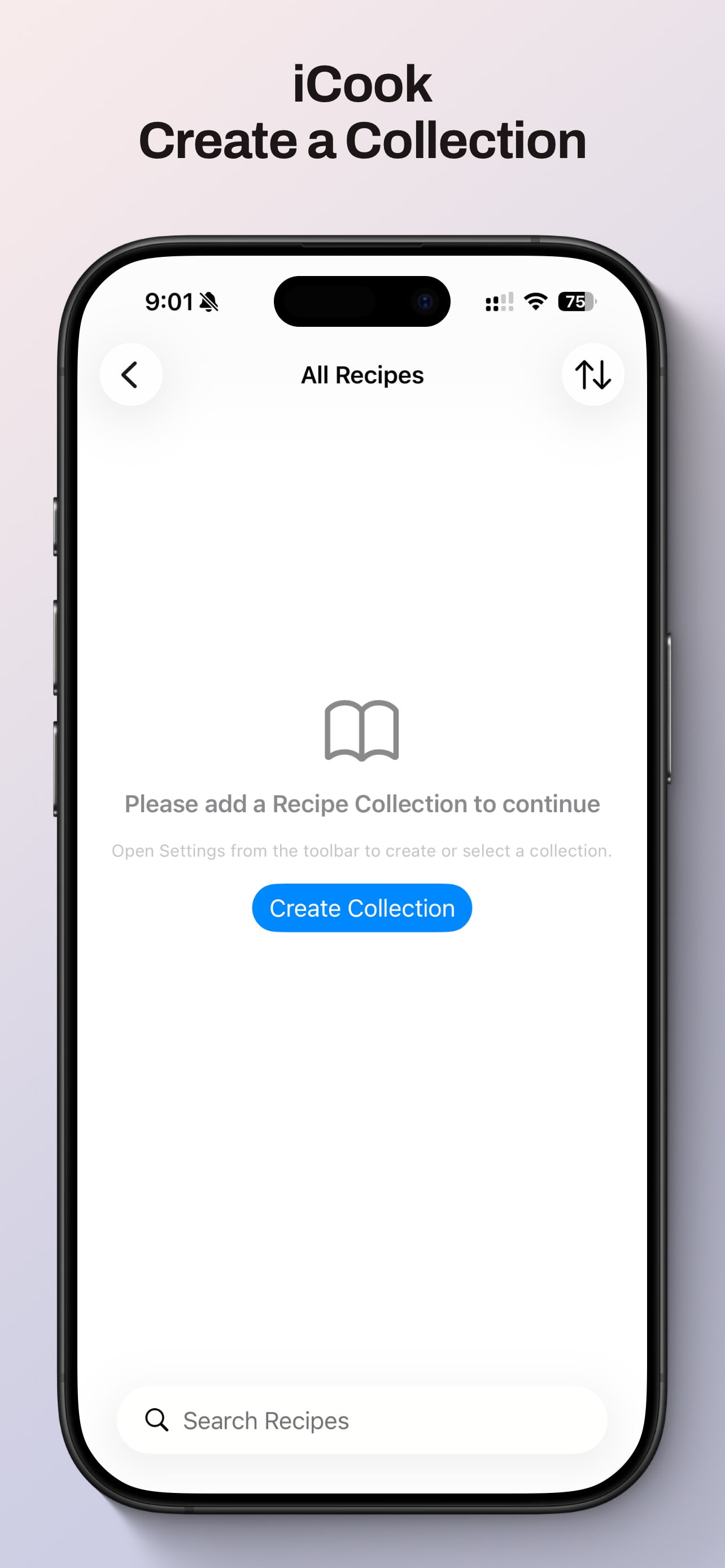
Open iCook, create a collection, and make it the place where your recipes will live.
Tutorial
Follow these step-by-step guides to create collections, link recipes, share with other people, and move recipes between devices with import and export.
Section 01
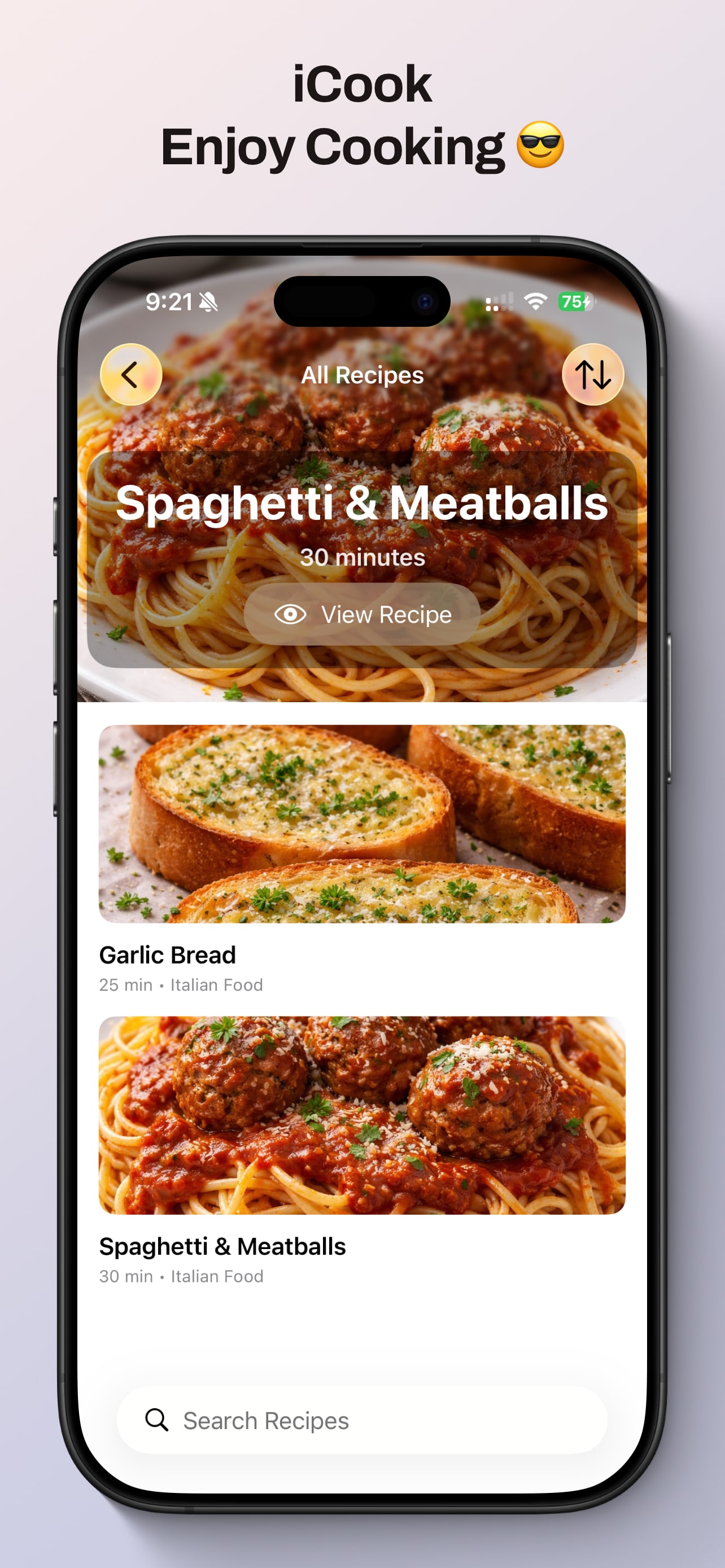
Show new users how to create their first collection, add categories, and start building a recipe library.
Open iCook, create a collection, and make it the place where your recipes will live.
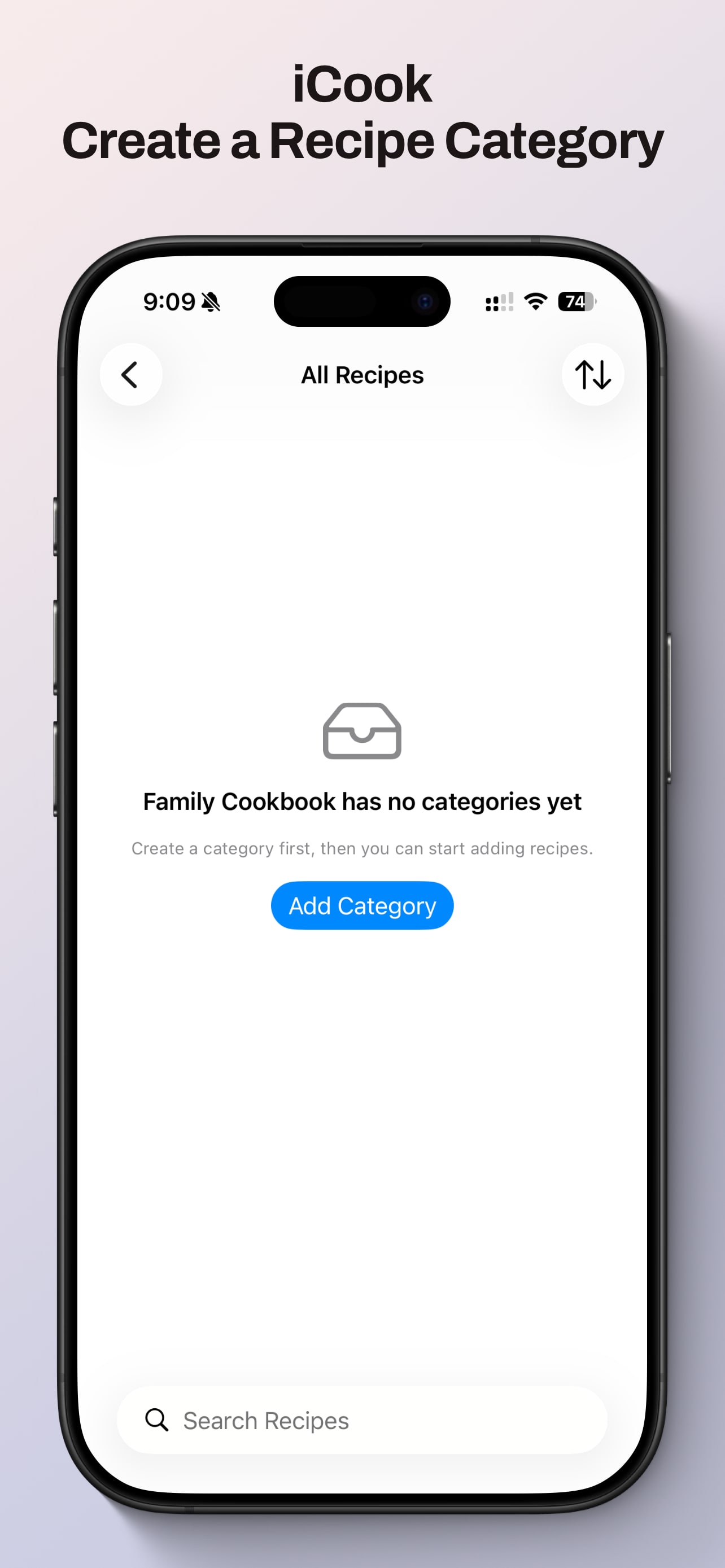
Create the structure inside the collection so recipes are easier to browse later.
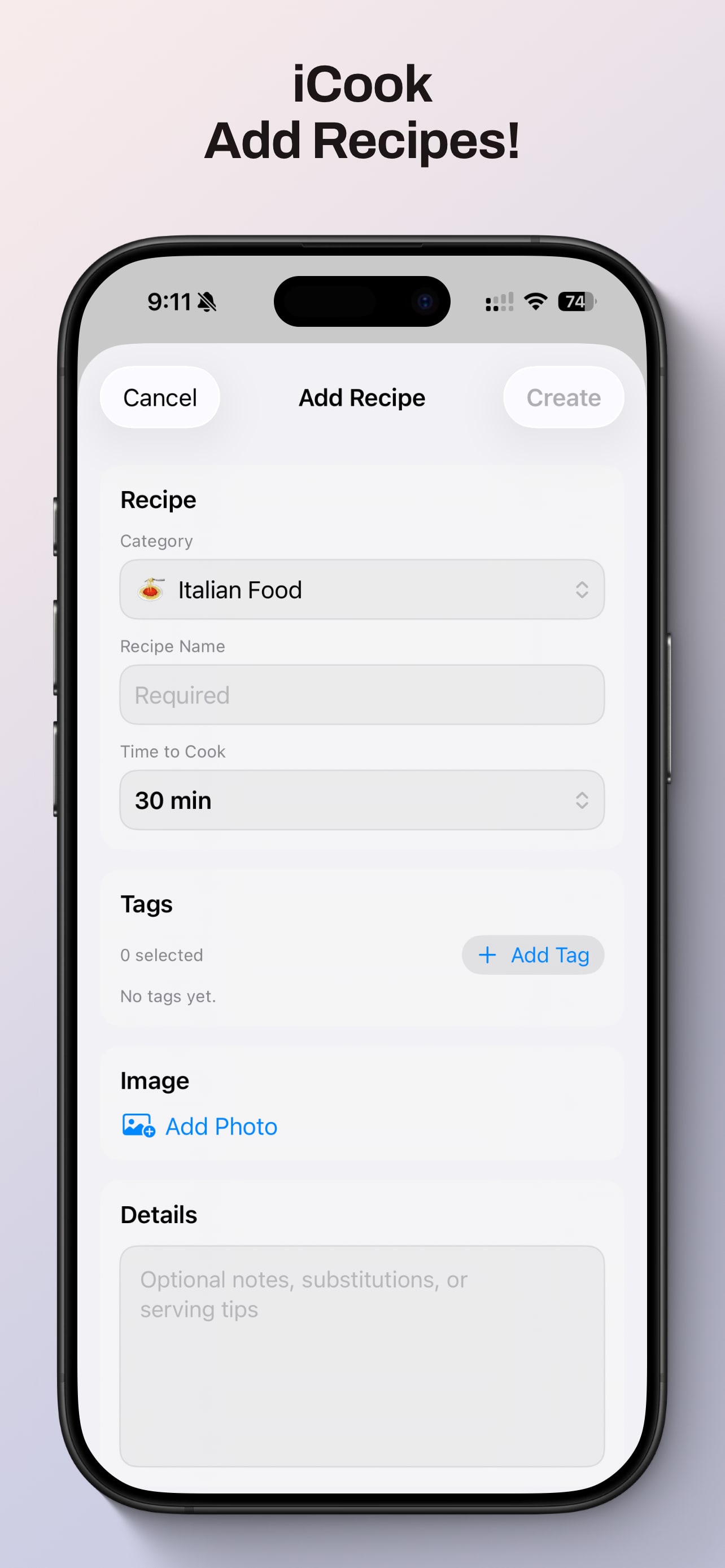
Capture the basics: title, time, notes, ingredients, steps, and optionally a photo.
Section 02
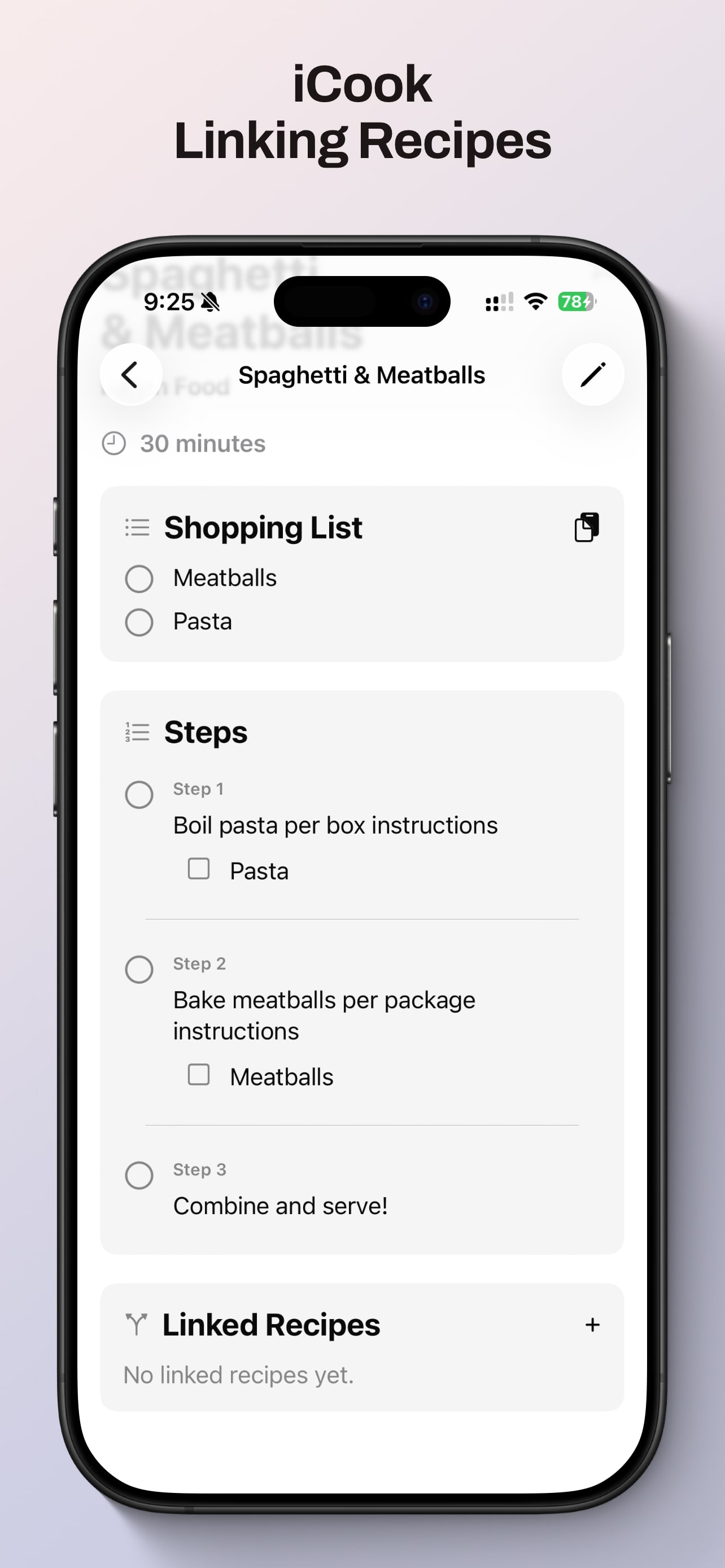
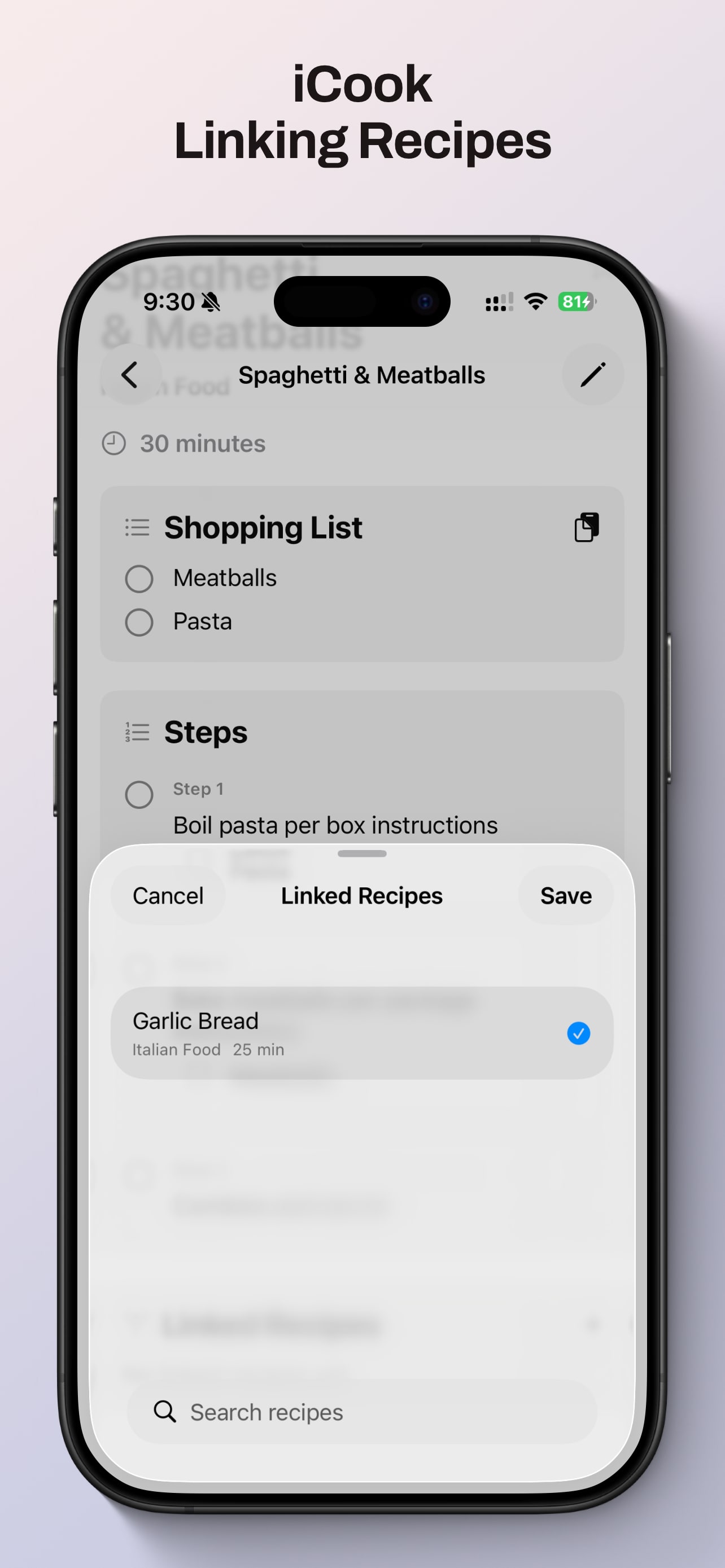
Explain how to connect recipes that depend on each other, like sauces, fillings, toppings, or prep components.
Start from the recipe that should point to another recipe.
Select the recipes you want to link so the relationship is easy to follow while cooking.
Jump between connected recipes without hunting through the full collection again.
Section 03
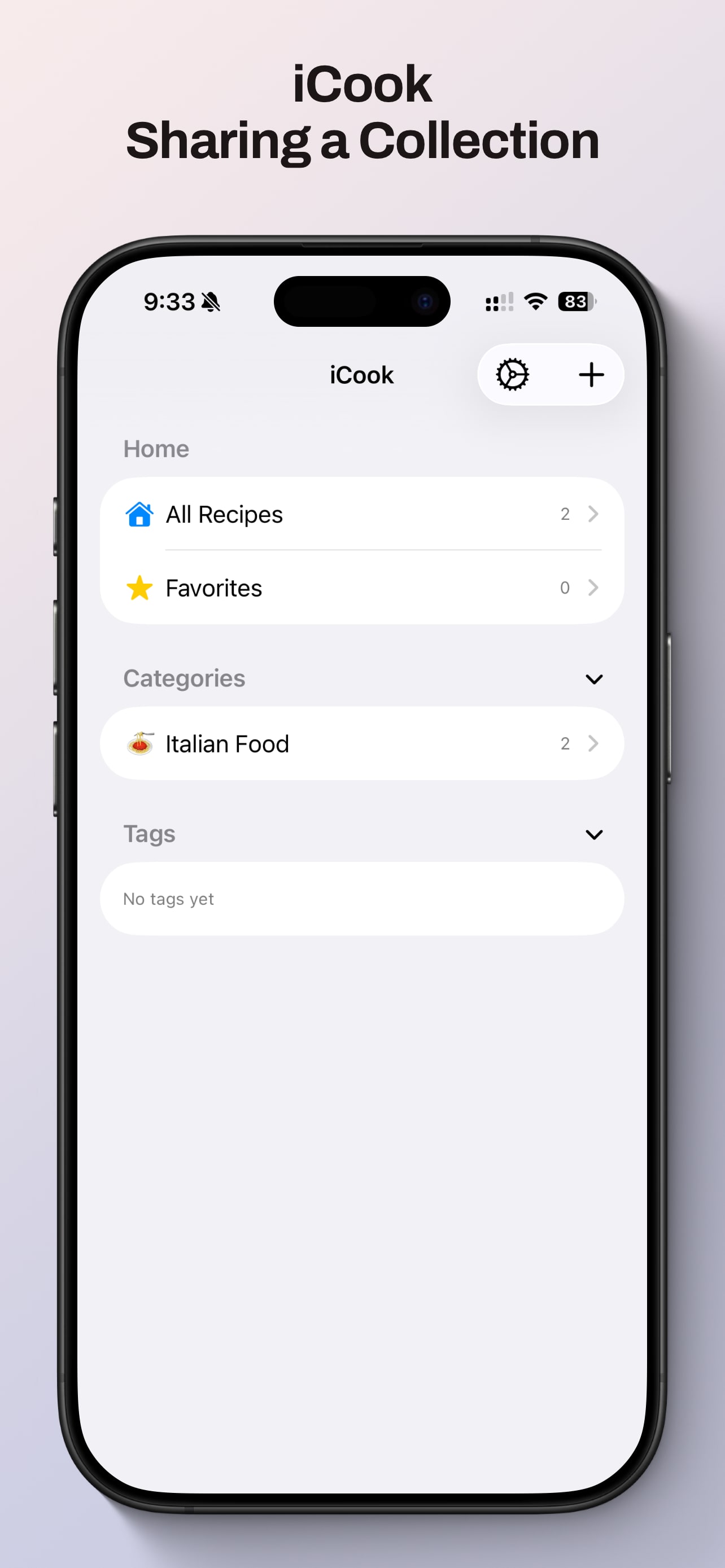
Walk through creating a shared collection, inviting people, and accepting shared collections on another device.
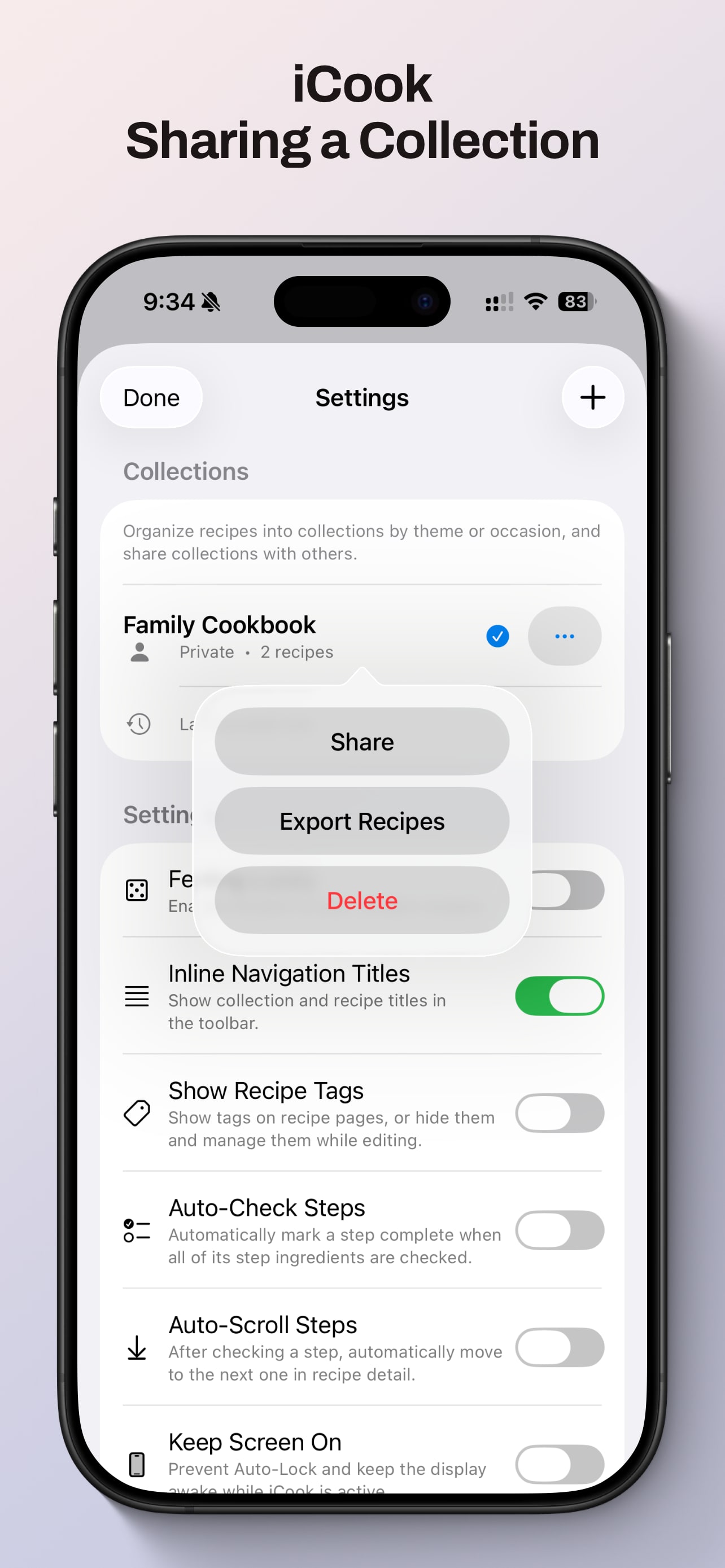
Open the App Settings window by tapping the Settings icon.
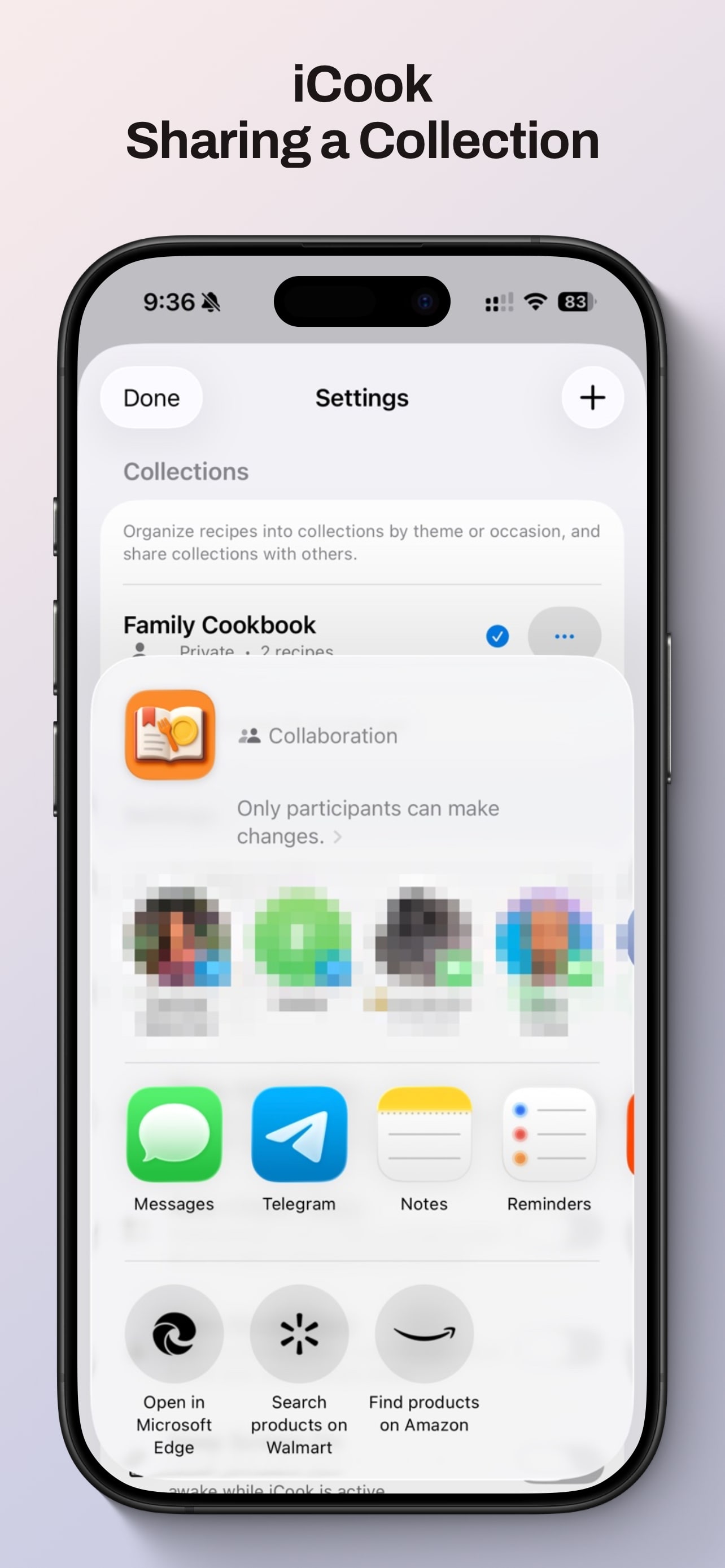
Tap the (...) next to the collection, and tap Share. Send the iCloud link via iMessage.
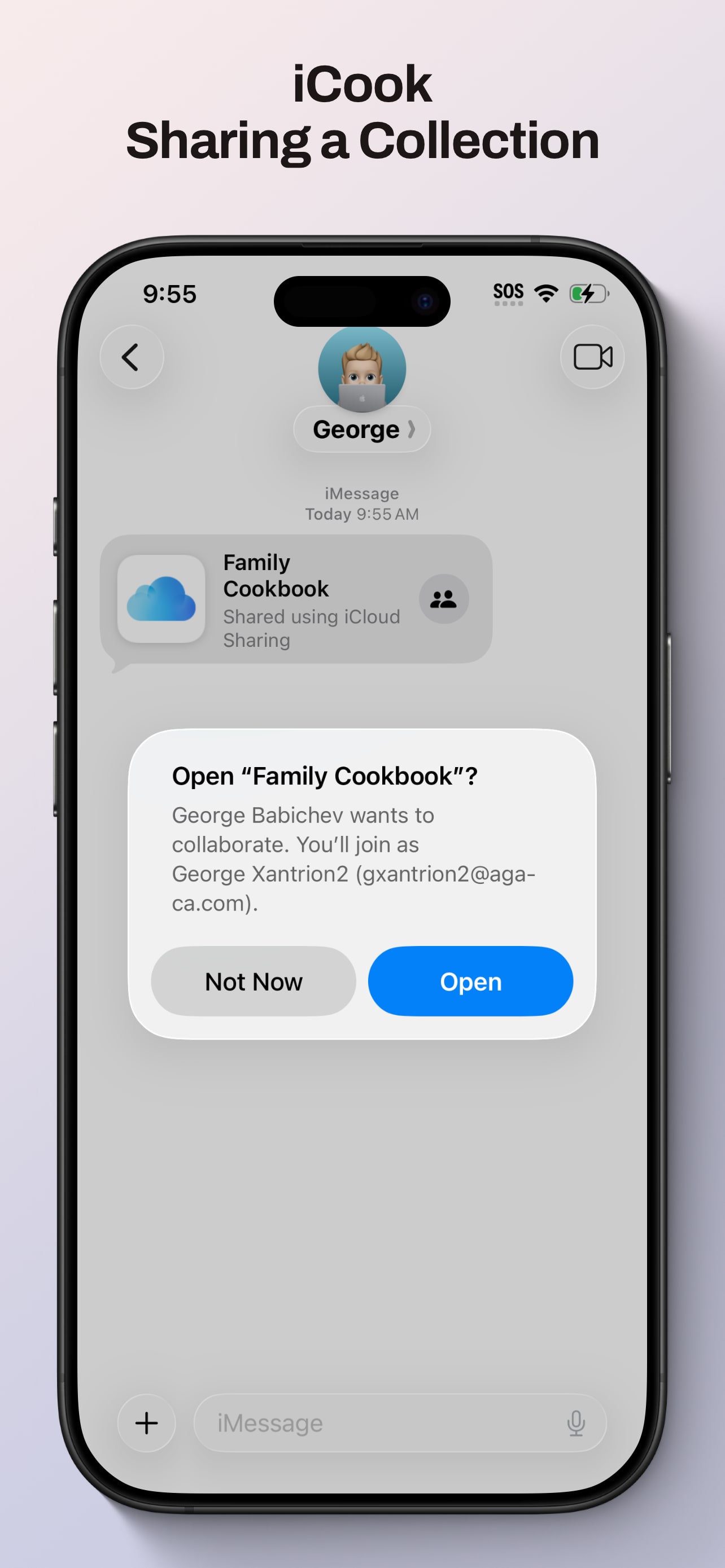
Accept the share on iPhone, iPad, or Mac and wait for iCook to load the shared collection.
Section 04
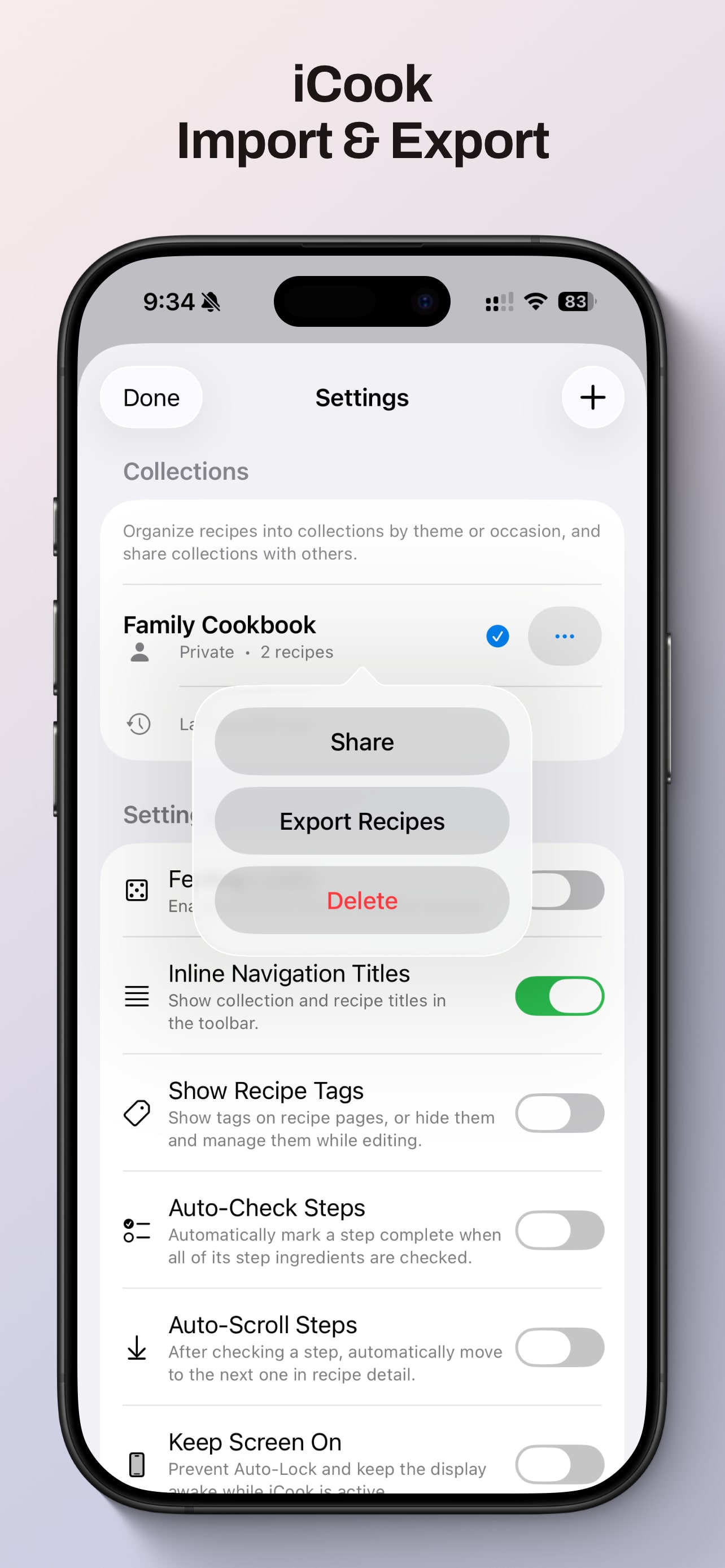
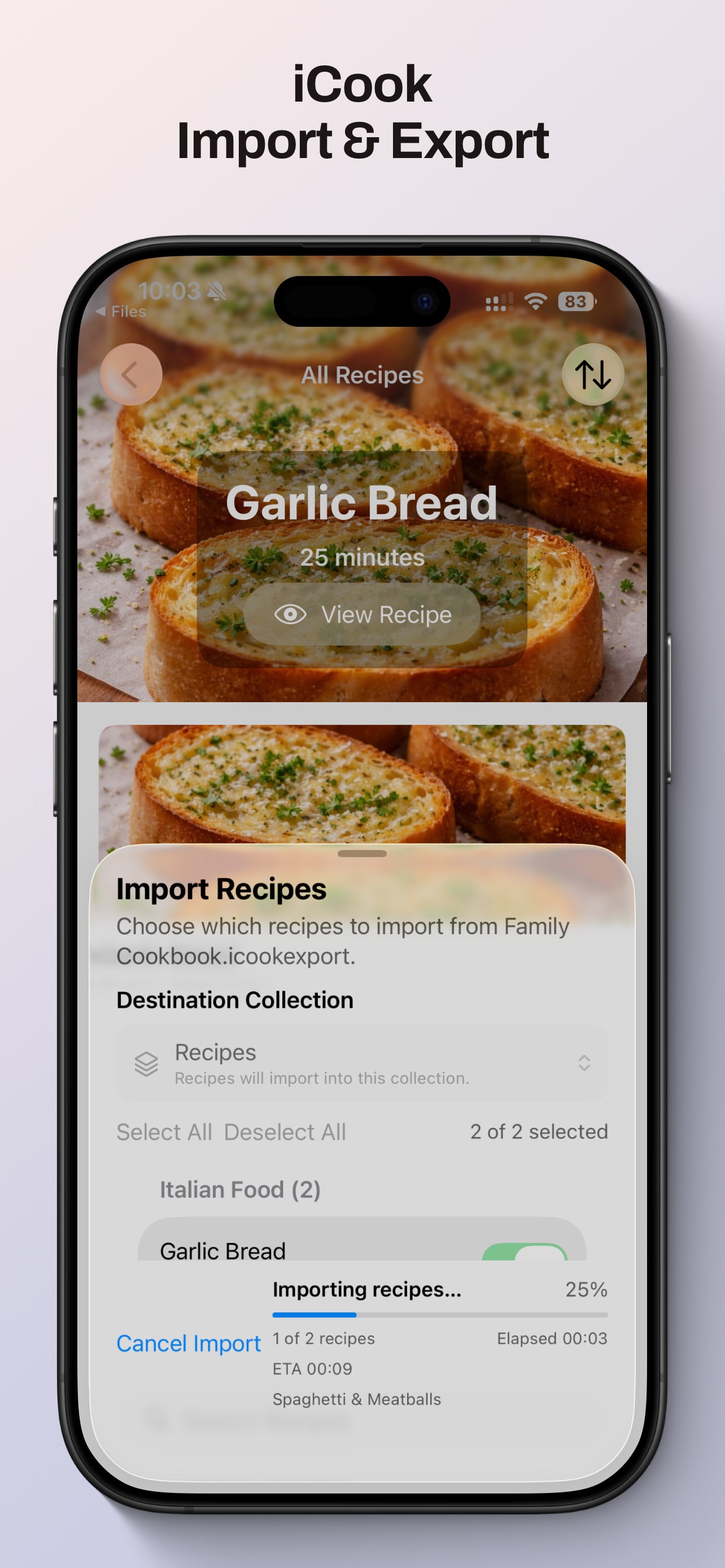
Show how to export a collection for backup or sharing, then import it back into iCook on another device or into a new collection.
Go to Settings, find the collection you want, and open the (...) menu.
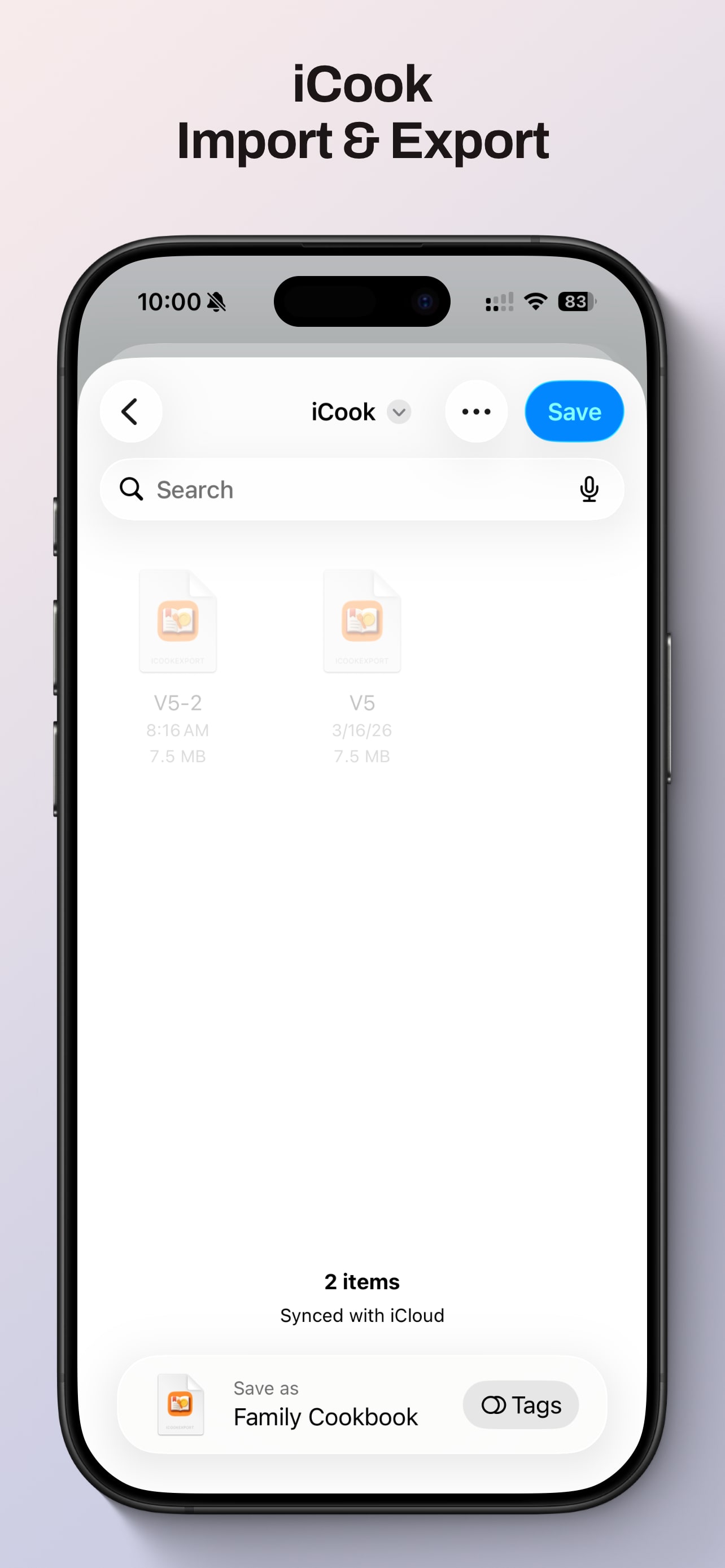
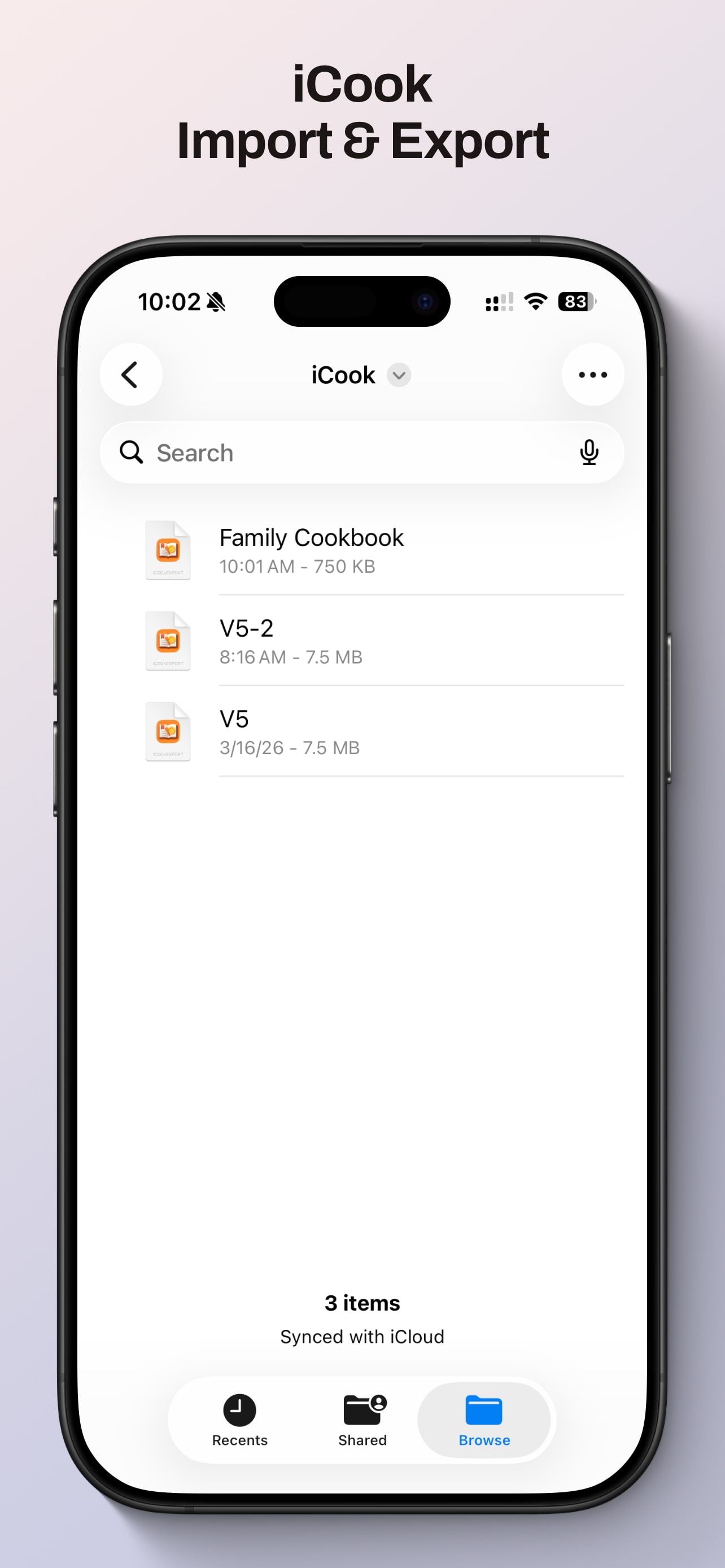
Choose Export Recipes to create an iCook export file you can save or send elsewhere.
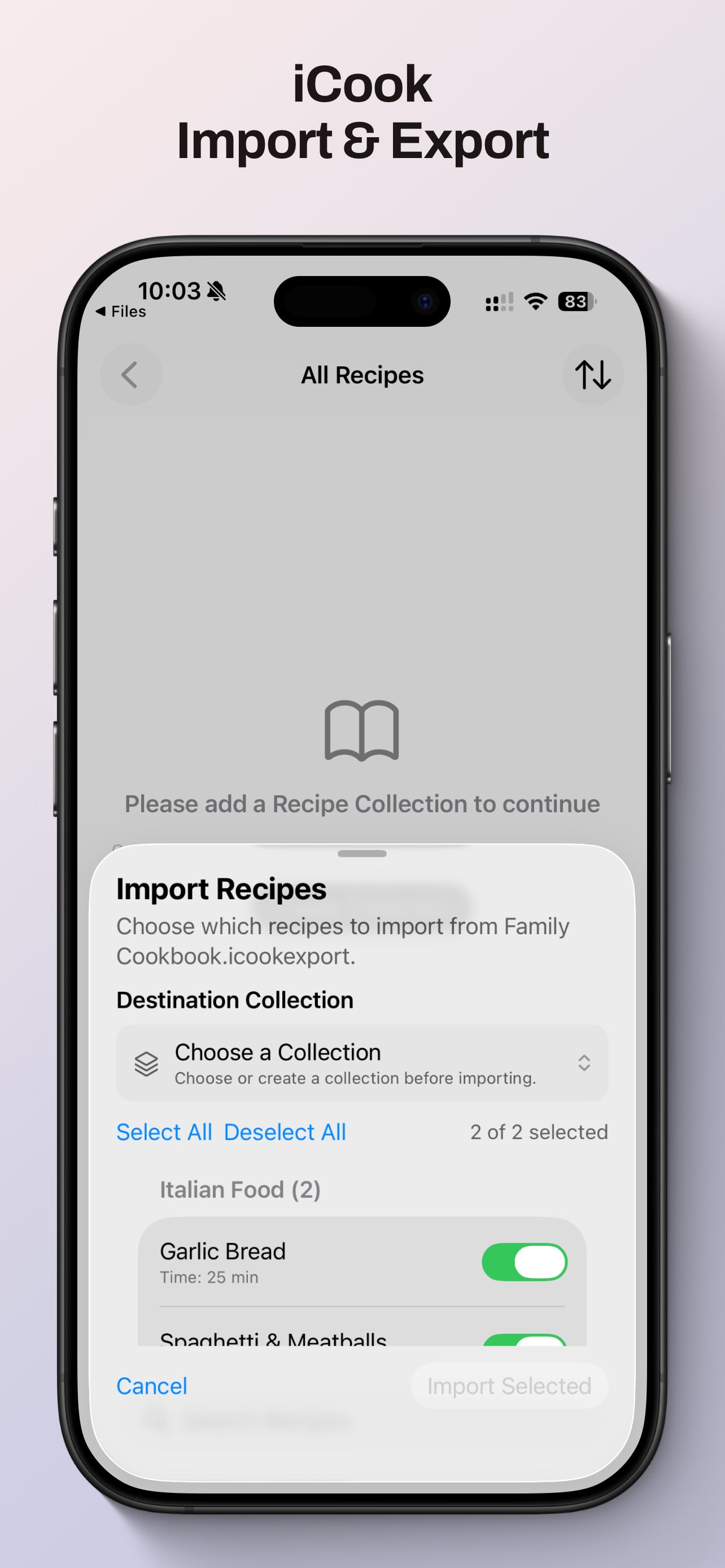
Open the export file in iCook and choose the destination collection before starting the import.